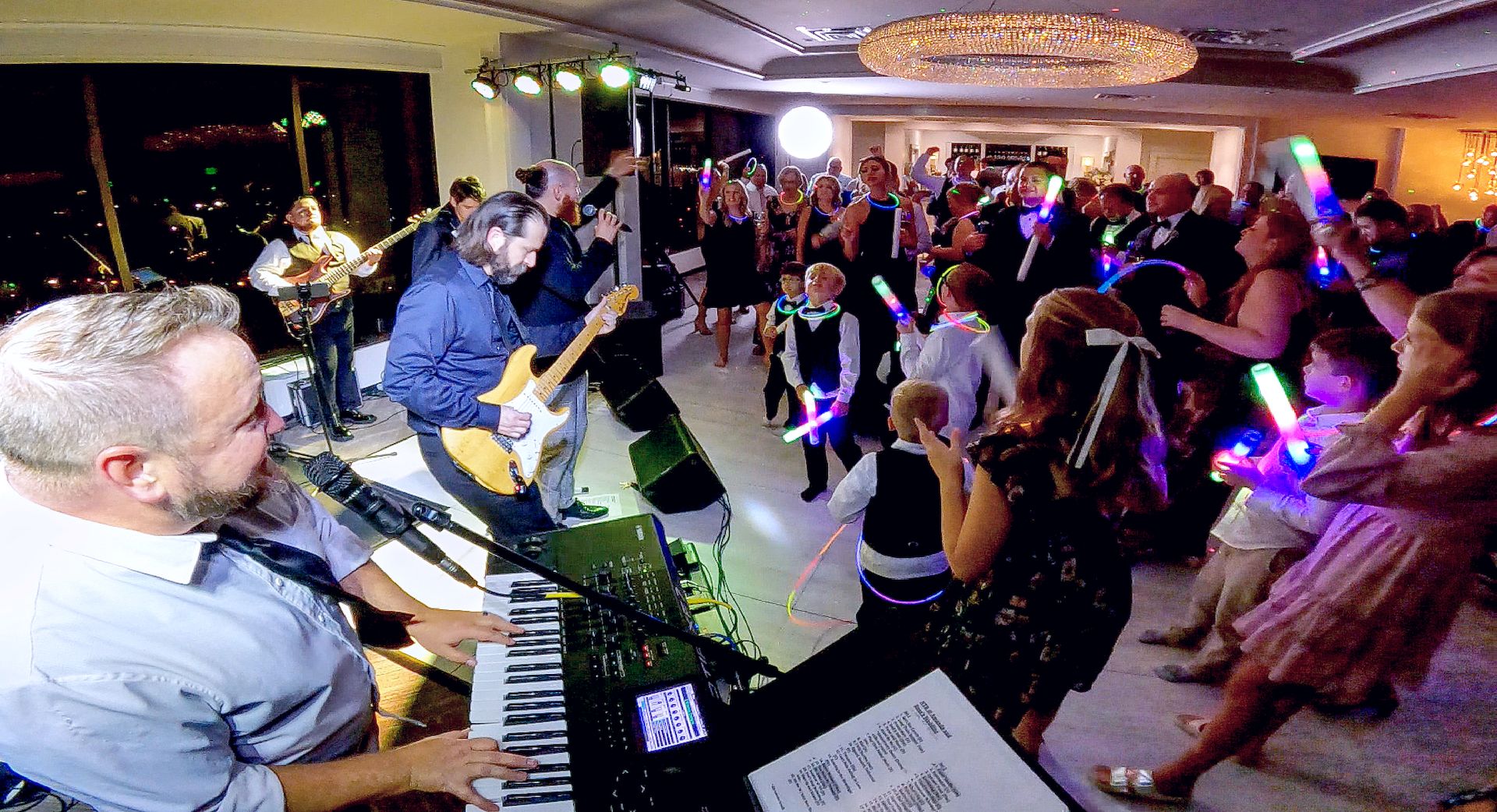
How To Put Custom Samples on Your Motif XF 🎹

Sampling on a Yamaha Motif XF can sound intimidating, especially if you’ve never done it before. Between DAWs, wave files, flash drives, and keyboard elements, it’s easy to assume this is something only studio techs deal with.
But here’s the truth: once you understand the process, it’s completely manageable and incredibly powerful for live performance.
Recently, a highly accomplished keyboard player reached out to me from Italy with a simple question:
“How do I put samples onto my Motif XF?”
This was someone playing major shows with world-class artists and yet sampling was still unexplored territory. That’s exactly why I wanted to break this down.
What We’re Actually Doing When We ‘Sample’ a Keyboard
At its core, sampling on the Motif XF involves three main steps:
- Recording a sound (vocals, instruments, effects, etc.)
- Exporting it (as a wave file, in my opinion)
- Loading it into the Motif XF in the right place
You can record anything you want:
- Your own vocals
- Harmonies
- Ethnic or specialty sounds
- One-off effects for a live show
In this case, I demonstrated this using my own voice, recording both a three-part harmony to use as one sample. Separately, I used a single vocal note and be spread across the entire keyboard.
Step 1: Record the Sample in a DAW
I personally use Reason, but your DAW (Digital Audio Workstation) doesn’t matter. Logic, Pro Tools, Ableton, FL Studio, Reaper, or any other recording software will work.
Important recommendations to remember:
- Export as a .WAV file
- 44.1kHz / 16-bit (CD quality) is more than enough for most live performance use
- Trim all silence from the beginning of the sample
- Keep file sizes small to conserve the little amount of space for data that is available on the keyboard.
Step 2: Transfer the Sample to a USB Drive
Once exported, place the wave files onto a USB-A flash drive compatible with Yamaha keyboards. The Motif XF uses this format as do many other Yamaha keyboards.
Step 3: Load the Sample Into the Motif XF (The Part Most People Mess Up)
Here’s the biggest mistake players make (including me):
👉 They load the sample without choosing where it should go.
If you’re not careful, you’ll overwrite part of an existing patch, often something you still need.
Instead:
- Choose a User bank
- Pick a sound you don’t use (harpsichords are common victims 😄)
- Decide which element and key the sample should live on
From there, you can:
- Assign the sample to a single key
- Spread it across the entire keyboard
- Layer it with existing sounds
- Edit with filters, cutoff, resonance, reverb, EQ, volume, effects, and more
- Save it as a custom patch
⚠️ Always save the patch, or the sample will disappear the next time you power up.
Why This Matters for Live Performers
Sampling can be an incredibly useful live performance tool.
Used correctly, it allows you to:
- Add backing vocals
- Trigger signature moments
- Fill sonic gaps without extra musicians
- Make your show feel bigger and more intentional
And once you understand how Yamaha’s element structure works, the Motif XF becomes far more flexible than most players realize.
Want More Keyboard & Performance Help?
This video started because someone asked a question.
That’s why I encourage you to fill out the Performer Survey linked below. It tells me:
- What you’re struggling with
- What you want to learn
- How I can help you perform better on stage

And if you want to go deeper into keyboards, stage presence, audience engagement, and actually owning the stage, check out more of dannyrobertsonmusic.com.
Let’s help you Be the Performer You’re Meant to Be.
Danny
Be the Performer You Are Meant to Be!
Join us to start performing with confidence, purpose, and fun... one email at a time.
When you signup, you will get regular email updates with free content and product offers.